
When trying to access a website, especially through its IP address rather than its domain name, Firefox may display errors such as “Secure Connection Failed” or “Warning: Potential Security Risk Ahead.” These warnings appear when Firefox cannot validate the website’s security certificate or complete a secure TLS connection.
The warning does not necessarily mean that an attack is taking place, but it does mean Firefox cannot confirm that the server is the site you intended to reach. The cause may be an expired certificate, a hostname mismatch, a self-signed certificate, an untrusted certificate authority, incorrect computer time, security software that intercepts encrypted traffic, or a server configuration problem.
If you control or fully trust the host and need to access an internal application, local server, network appliance, or testing environment, you may be able to create a temporary certificate exception. However, not every Firefox security error can or should be bypassed. The correct response depends on the error code and the reason certificate validation failed.
Why Firefox Displays Certificate Warnings
HTTPS uses Transport Layer Security, or TLS, to encrypt communication between Firefox and a web server. During the connection, the server presents a digital certificate that identifies the host and provides the public key needed to establish encryption.
Firefox checks whether the certificate is valid, whether it was issued by a trusted certificate authority, whether it has expired, and whether its identity matches the address entered in the browser. If any of these checks fail, Firefox may block the connection rather than allowing data to be sent to a server whose identity cannot be verified.
This protection matters most on pages where you enter passwords, payment information, email content, administrative credentials, or other sensitive data. A certificate warning removes the normal assurance that the connection is going to the intended server rather than an impersonator or an incorrectly configured system.
Why Accessing a Website by IP Address Can Cause an Error
A certificate is normally issued for one or more domain names, such as example.com or server.example.com. When you visit the site by domain name, Firefox compares that name with the identities listed in the certificate.
If you instead open a URL such as https://192.0.2.10, Firefox validates the certificate against that IP address. For the connection to pass identity verification, the certificate must contain the exact IP address in an appropriate Subject Alternative Name entry. A certificate issued only for a domain name will not automatically validate when the same server is reached through its numerical address.
This commonly produces SSL_ERROR_BAD_CERT_DOMAIN. The preferred solution is usually to access the server through the hostname covered by its certificate. For an internal server, an administrator can configure internal DNS and issue a certificate for the chosen internal hostname. If direct IP access is required, the certificate must be created specifically to cover that IP address.
Common SSL/TLS Error Messages
Firefox may display various secure connection errors when there is a problem with a website’s certificate, certificate chain, identity, or TLS configuration. The exact message and available buttons can vary by Firefox version and by the type of failure.
-
MOZILLA_PKIX_ERROR_ADDITIONAL_POLICY_CONSTRAINT_FAILED – The certificate or its issuing authority does not meet an additional certificate policy enforced by Firefox. This can occur when a certificate authority or certificate is no longer accepted under current browser security requirements.
-
SEC_ERROR_EXPIRED_ISSUER_CERTIFICATE – A certificate belonging to the issuing certificate authority or an intermediate authority has expired.
-
SEC_ERROR_EXPIRED_CERTIFICATE – The website’s certificate has expired according to the date and time detected by the computer.
-
SEC_ERROR_UNKNOWN_ISSUER – Firefox cannot build a trusted certificate chain from the website’s certificate to a recognized root certificate authority. The server may be using a private authority, omitting an intermediate certificate, or presenting a certificate altered by security software or a network device.
-
MOZILLA_PKIX_ERROR_MITM_DETECTED – Firefox detected a certificate issuer associated with possible HTTPS interception. This may be caused by malware, but it can also occur when antivirus software, parental-control software, a proxy, or a corporate firewall inspects encrypted traffic.
-
ERROR_SELF_SIGNED_CERT – The website is using a certificate that signed itself rather than one that chains to a certificate authority trusted by Firefox.
-
SSL_ERROR_BAD_CERT_DOMAIN – The certificate does not cover the domain name or IP address entered in the address bar.
-
SEC_ERROR_OCSP_INVALID_SIGNING_CERT – Firefox encountered a problem while validating a signed certificate-status response used to check whether the certificate has been revoked.
These errors typically occur when:
-
The website is using an expired, revoked, incomplete, or otherwise invalid certificate
-
The certificate is self-signed or was issued by a private certificate authority that Firefox does not trust
-
You are accessing the site through an IP address instead of the domain name covered by its certificate
-
DNS points the hostname to the wrong server or the server presents the certificate for a different virtual host
-
Your system date, time, or time zone is incorrect
-
An intermediary, such as a corporate firewall, filtering proxy, antivirus program, or parental-control application, is intercepting the encrypted connection
-
The web server is not sending the required intermediate certificates
-
The server supports obsolete or incompatible TLS settings
-
A public Wi-Fi login page is intercepting the request before you have completed the network’s sign-in process
Checks to Perform Before Bypassing the Warning
Do not immediately create an exception. First confirm that the address is correct and determine why Firefox rejected the connection. Click “Advanced” when that option is available and record the error code displayed on the page.
Check the computer’s date, time, and time zone. Certificate validity periods are compared with the local system clock, so a computer set to the wrong year or time zone may incorrectly report that a valid certificate has expired or is not yet valid.
If you entered an IP address, try the server’s correct hostname instead. A server certificate issued for intranet.example.com will normally fail validation when the same server is opened as https://192.0.2.10.
For a public website, test the address on another trusted device or network. If the error appears everywhere, the problem is probably on the website. If it appears only on one computer, inspect local antivirus software, proxy settings, installed certificates, and Firefox extensions. If it appears only on one network, a firewall, filtering service, captive portal, or proxy may be involved.
Do not enter credentials or sensitive information while investigating an unexplained certificate warning. A familiar-looking page does not prove that the connection is reaching the correct server.
Bypassing the Error for Trusted Sites
If you trust the website, know who operates it, and understand why its certificate is not publicly trusted, Firefox may allow you to create an exception. This is most appropriate for controlled internal systems, temporary development servers, home-network devices, and test environments.
A certificate exception accepts the presented certificate despite a validation failure. It does not repair the certificate, make the configuration secure, or prove that the server is genuine. The underlying issue should still be corrected by the system administrator.
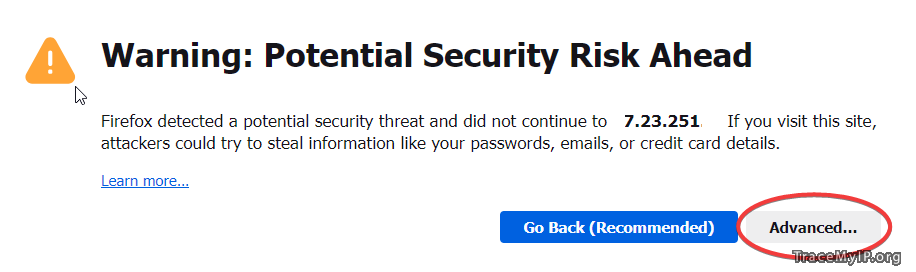
Method 1: When “Advanced” button is visible
-
Confirm that the URL in the address bar is exactly the address you intended to visit.
-
Click the “Advanced” button on the error page.
-
Read the explanation and note the displayed error code.
-
Verify that the error is expected. For example, an administrator may have confirmed that an internal server uses a known self-signed certificate.
-
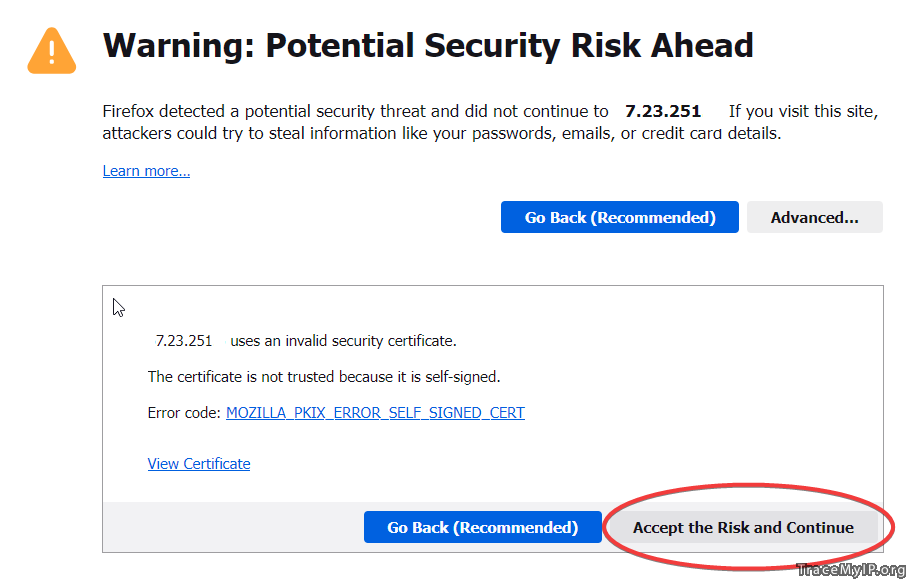
If Firefox offers the option and you accept the risk, click “Accept the Risk and Continue.”
Firefox may save a certificate exception for the host. Future connections can continue to use that exception until it is removed, the certificate changes, or Firefox determines that the error cannot be overridden.
Do not use this option simply because the website appears familiar. If the error is unexpected, verify the certificate with the server administrator through a separate trusted communication method.
Method 2: When only “Try Again” button is visible
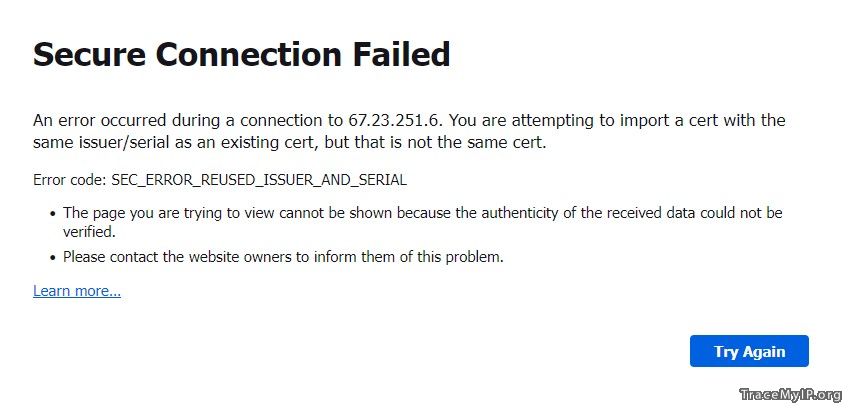
A page that displays only “Try Again” may represent a TLS connection failure rather than a certificate warning that supports an exception. It can also indicate that Firefox intentionally does not permit the error to be bypassed. Deleting Firefox’s certificate database merely to make an “Accept the Risk and Continue” button appear is not a reliable or recommended bypass method.
-
Click “Try Again” once to rule out a temporary connection interruption.
-
Check the address carefully, including the protocol, hostname or IP address, and port number.
-
Correct the computer’s date, time, and time zone, then restart Firefox.
-
If you used an IP address, try the hostname listed in the server’s certificate or provided by the network administrator.
-
Test the site in another browser or on another trusted device. This helps determine whether the problem is limited to one Firefox profile, one computer, or the server itself.
-
Temporarily investigate antivirus HTTPS scanning, proxy software, parental controls, VPN software, and corporate traffic inspection. Do not disable organizational security controls without authorization.
-
For a work, school, or managed network, contact the administrator. The device may need an approved internal root certificate or a corrected proxy configuration.
-
For a server you manage, inspect its TLS configuration, certificate chain, hostname coverage, validity dates, and supported protocol versions.
If Firefox does not display an option to continue, do not assume the button is hidden by a damaged profile. Some security failures are deliberately non-bypassable. The safe solution is to correct the server certificate, use the proper hostname, install the organization’s trusted certificate correctly, or resolve the software or network interception causing the error.
Why Deleting cert9.db Is Not a General Bypass
The Firefox profile file cert9.db stores certificate-related information, including imported certificates and certificate data associated with the profile. Removing or renaming it can reset certificate information and may remove custom trust settings or saved exceptions.
This file should not be deleted as a routine method for bypassing one website’s security warning. Doing so does not repair an expired certificate, add a missing IP address to a certificate, fix a hostname mismatch, or make an untrusted server trustworthy. It may also create new certificate problems for internal applications that depend on imported authorities.
If certificate database corruption is genuinely suspected, back up the Firefox profile before making changes. Close Firefox completely and follow troubleshooting guidance appropriate to the specific error. In managed environments, consult the system administrator before resetting any certificate database because locally installed organizational certificates may be required for access.
When Firefox Will Not Allow an Exception
Firefox does not provide an override for every security error. Some certificate and connection failures are blocked because allowing users to continue would defeat a security policy or would not produce a usable encrypted connection.
The “Accept the Risk and Continue” option may be unavailable when the error involves a certificate condition Firefox treats as non-bypassable, when the TLS handshake fails before a certificate exception can be created, or when a security policy requires strict HTTPS validation.
Repeatedly clicking “Try Again”, clearing the cache, or recreating the certificate database will not solve a server that presents the wrong certificate or uses an unsupported TLS configuration. The server or network configuration must be corrected.
Safer Solutions for Internal and Local Servers
Creating browser exceptions may be acceptable for short-lived testing, but it does not scale well and trains users to ignore warnings. A better long-term solution is to configure internal services with certificates that client devices can validate normally.
For an internal organization, administrators can operate a private certificate authority and install its root certificate through approved device-management tools. Certificates issued by that authority should contain the exact internal hostnames or IP addresses used to reach each service.
For a local development environment, use a development certificate tool or a local certificate authority designed for testing. Trust only the root certificate you created or received through a verified administrative process. Never install an unknown root certificate downloaded from an untrusted website, email attachment, or unexpected pop-up.
Network appliances such as routers, storage devices, printers, hypervisors, and management consoles often ship with self-signed certificates. Replace the default certificate when the device supports it. At minimum, verify the device’s certificate fingerprint through its administrative documentation or another trusted channel before creating an exception.
What Website Administrators Should Fix
When a public website produces a Firefox certificate warning, the proper response is to repair the HTTPS configuration rather than instruct visitors to bypass it. Administrators should confirm that the certificate is current, issued by an appropriate authority, and installed with the complete intermediate chain.
The certificate must cover every hostname used by visitors. If the website redirects between example.com and www.example.com, both names must be included unless separate certificates are used. A service intentionally accessed through an IP address needs a certificate that explicitly contains that IP address.
Administrators should also verify that the server selects the correct certificate when multiple HTTPS sites share an address, that system clocks are synchronized, and that all public-facing servers behind a load balancer or content delivery network use consistent certificate settings.
Important Security Note
Only bypass certificate warnings for systems you fully trust and whose certificate problem you understand. These errors can indicate legitimate risks that expose passwords, session cookies, messages, files, or administrative data to interception or manipulation.
For a public website showing an unexpected warning, do not continue. Contact the website administrator and allow the operator to fix the certificate or server configuration. Avoid entering account credentials, payment information, or personal data until Firefox can establish a connection without a certificate warning.
If you encounter similar errors on many unrelated websites, the cause is more likely to be your computer or network than all of the websites at once. Check the system clock and time zone, complete any public Wi-Fi login process, update Firefox and the operating system, and investigate antivirus HTTPS inspection, proxy settings, malware, or organizational network filtering.
A certificate exception should be a limited response to a known condition, not a permanent substitute for correct HTTPS configuration. For frequently used internal services, install a properly trusted certificate and access the service through the hostname or IP address included in that certificate.